
How to Scan a QR Code on an Android (Camera & Google Lens Guide)
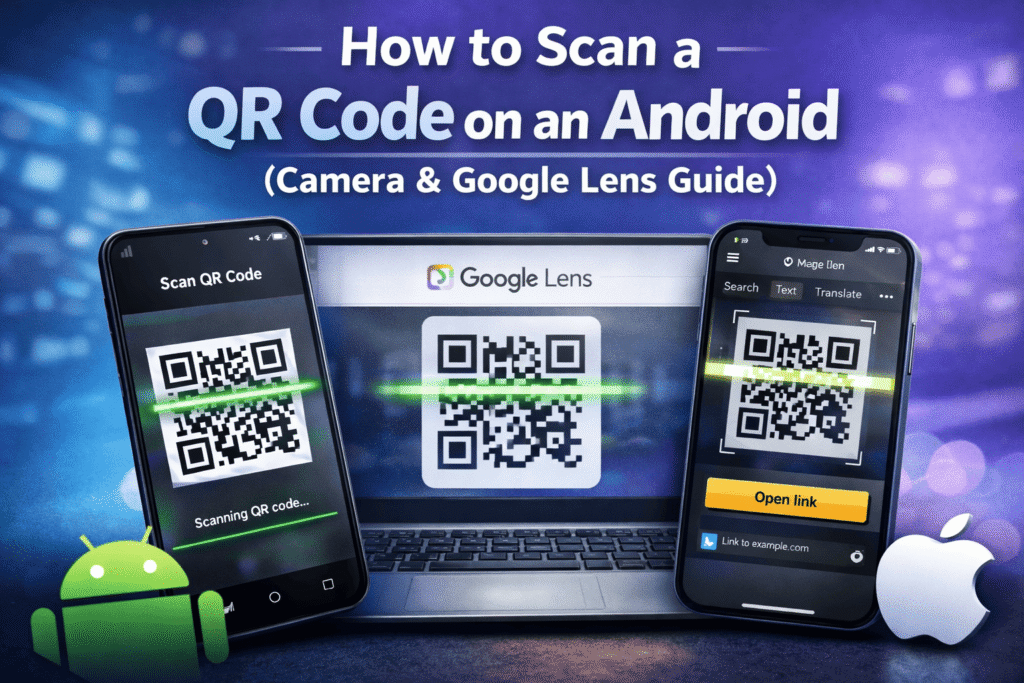
QR codes are widely used on Android phones for opening websites, logging into apps, connecting to Wi-Fi, making payments, and accessing digital services. If you are searching for how to scan a QR code on an Android, this guide covers all working methods—from built-in camera scanning to Google Lens and image-based scanning—explained in a simple, safe, and beginner-friendly way.
This article is written to be Google AdSense-safe, practical for everyday users, and suitable for all modern Android devices.
What Is a QR Code?
A QR code (Quick Response code) is a type of two-dimensional barcode that stores data such as URLs, text, contact details, or authentication tokens. When scanned, the phone decodes the information instantly and displays the result.
A detailed explanation of how QR codes work, including their structure and real-world use cases, is available in this QR Code overview on Wikipedia.
Can Android Phones Scan QR Codes Natively?
Yes. Most modern Android phones can scan QR codes without installing any extra app. Android supports QR scanning through:
- Built-in Camera apps (on many devices)
- Google Lens (available on almost all Android phones)
- Google Photos (for scanning QR codes from images)
These methods are officially supported by Google and follow Android security and privacy standards.
Method 1:
Using Android phone camera Scan Qr code
Many Android phones now support QR code scanning directly from the Camera app.
Steps:
- Open the Camera app on your Android phone
- Point the camera at the QR code
- Hold steady for 1–2 seconds
- A notification or link appears on the screen
- Tap the link to open it
According to Google’s official Android camera documentation, QR code detection is built into many default camera apps, though availability may vary by manufacturer.
📌 Works on:
Samsung, Google Pixel, Xiaomi, OnePlus, Oppo (newer models)
Method 2: Scan QR Code Using Google Lens (Recommended)
Google Lens is the most reliable and universal method to scan QR codes on Android.
Steps:
- Open Google Lens (from Google app, Camera, or app drawer)
- Point your camera at the QR code
- Lens automatically detects the QR code
- Tap the result to open the link or content
Google explains how Lens identifies objects, text, and QR codes in its official Google Lens help documentation.
📌 Best for:
- Older Android phones
- QR codes on screens
- Accurate detection
Method 3: Scan QR Code from Image or Screenshot on Android
If the QR code is saved as an image or screenshot, you can still scan it easily.
Steps:
- Open Google Photos
- Select the image containing the QR code
- Tap the Google Lens icon
- The QR code is scanned instantly
Google confirms image-based QR scanning support in its Google Photos help documentation.
Method 4: Scan QR Code from Chrome Browser (Links Only)
If a QR code opens a web link, Chrome can help generate and interact with QR codes.
While Chrome mainly focuses on creating QR codes, Google’s official Chrome documentation explains how QR codes are used for quick sharing.
This method is limited but useful for link-related QR actions.
Method 5: Use an Online QR Scanner (Optional)
If your phone camera does not support QR scanning, you can use browser-based tools.
You can try tools like:
These tools work directly in the browser and do not require installation.
Comparison Table: QR Code Scanning Methods on Android
Method | App Needed | Works from Image | Accuracy |
Camera App | No | No | High |
Google Lens | No | Yes | Very High |
Google Photos | No | Yes | High |
Online QR Tool | No | Yes | Medium–High |
Security Tips When Scanning QR Codes on Android
QR codes can redirect to unsafe websites if used maliciously. Follow these safety tips:
- Scan QR codes only from trusted sources
- Always check the URL before opening
- Avoid entering passwords on unknown pages
- Keep Android and Google apps updated
- Check the Privacy Policy of any tool which you use
The Google Safety Center warns users about phishing risks linked to QR codes and unsafe redirects
Recommended Tools on PureToolzHub
To scan QR codes safely and efficiently, explore:
- QR Code Scanner
- Scan QR Code from Image
- QR Code Generator Tool
- URL Decoder Tool
- Text to QR Converter
Each tool works directly in your browser, respects user privacy, and is built to provide practical solutions for everyday needs.

Frequently Asked Questions (FAQs)
How can I scan a QR code on an Android phone without installing any additional apps?
You can use your phone’s Camera app or Google Lens without installing any extra apps.
What could be the reason my Android device is unable to detect or scan a QR code?
Your camera app may not support QR scanning. Use Google Lens instead.
Is it possible to scan a QR code directly from a saved screenshot or image?
Yes. Open the image in Google Photos and tap the Google Lens icon.
Is Google Lens safe to use?
Yes. Google Lens follows Google’s privacy and security policies.
Do QR scanners save my data?
Trusted tools do not store QR images or scanned data. Always check the Privacy Policy.
Conclusion
Learning how to scan a QR code on an Android phone is simple and does not require extra apps in most cases. Whether you use your camera, Google Lens, or scan from an image, Android offers multiple secure and convenient options.
For advanced QR-related tasks, browser-based tools on PureToolzHub provide a fast, installation-free solution that works across all devices.